
Features
This page describes v1.3.0, the latest release. The development version
What each tab does, how PlayGuard writes safely, and what the console counts as play time. New to PlayGuard? Start with getting started.
On this page
- Controls
- The look: Cadran
- Notifications — what needs you, from any tab
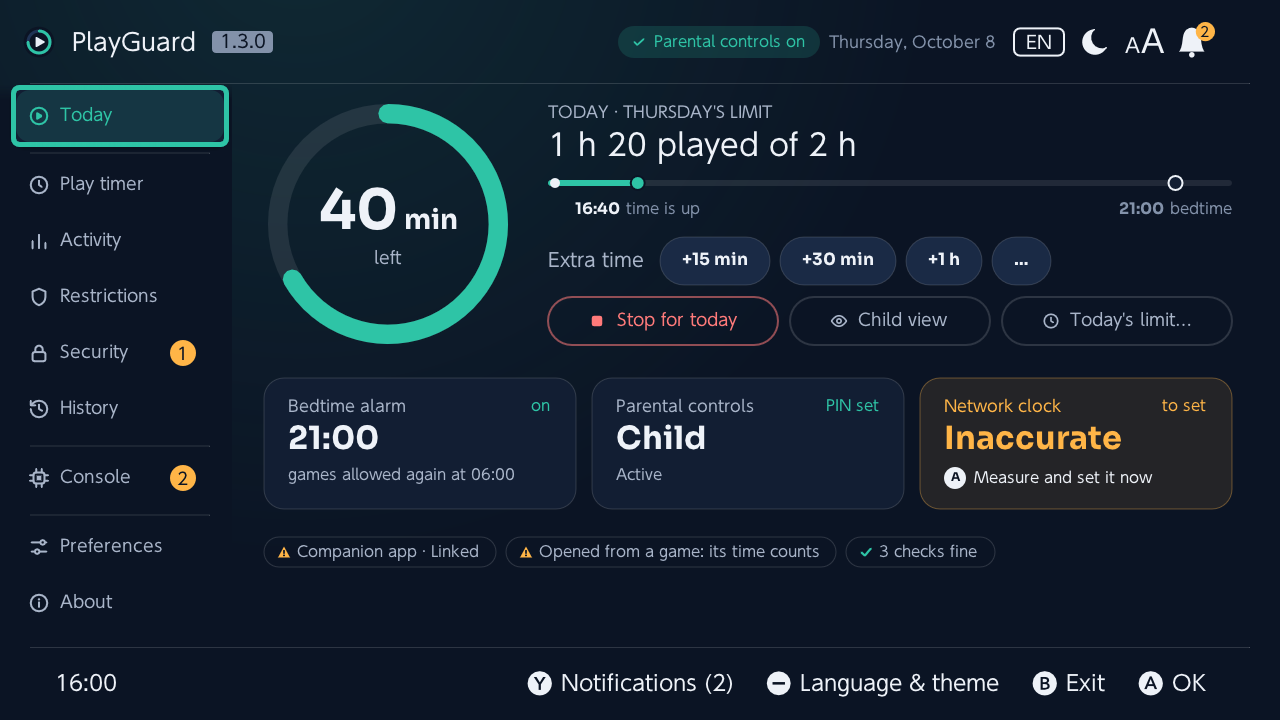
- Today — the day at a glance
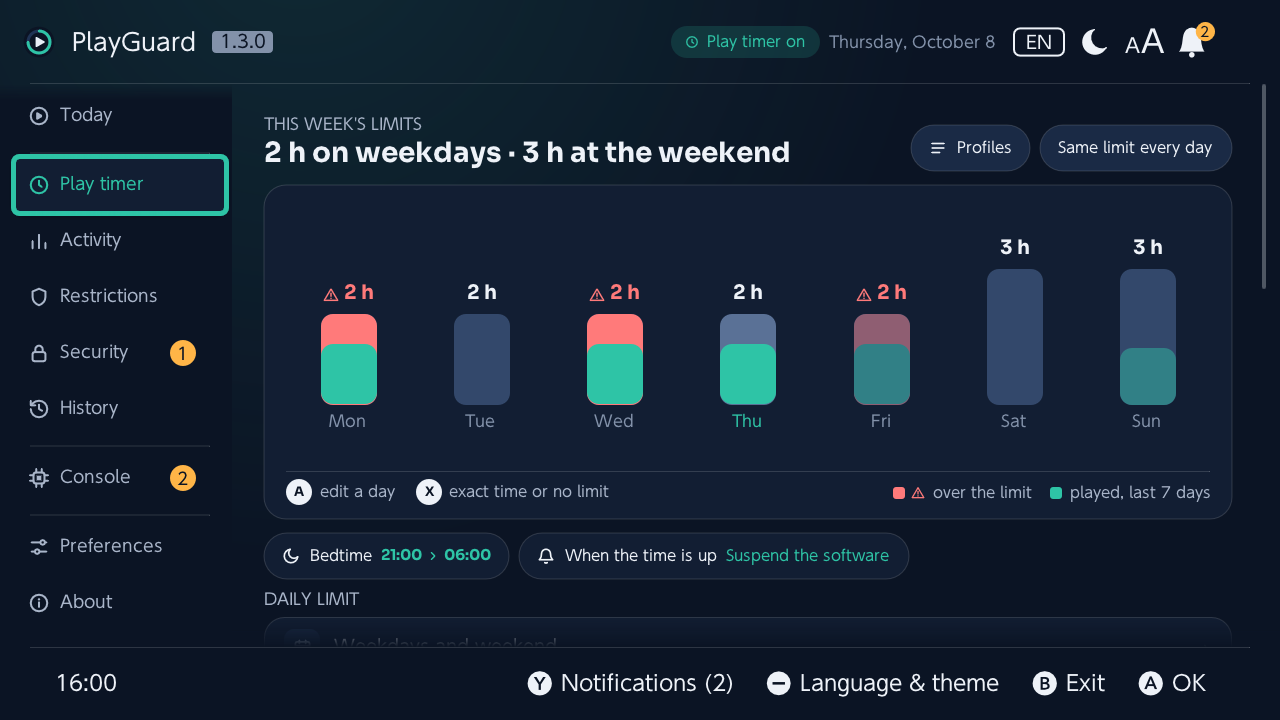
- Play timer — the week is the editor
- Activity — who played what, and how long
- Restrictions — level, age rating, communication
- Security — the PIN, unlocking, the homebrew menu, companion app
- History — what PlayGuard changed, and the backups
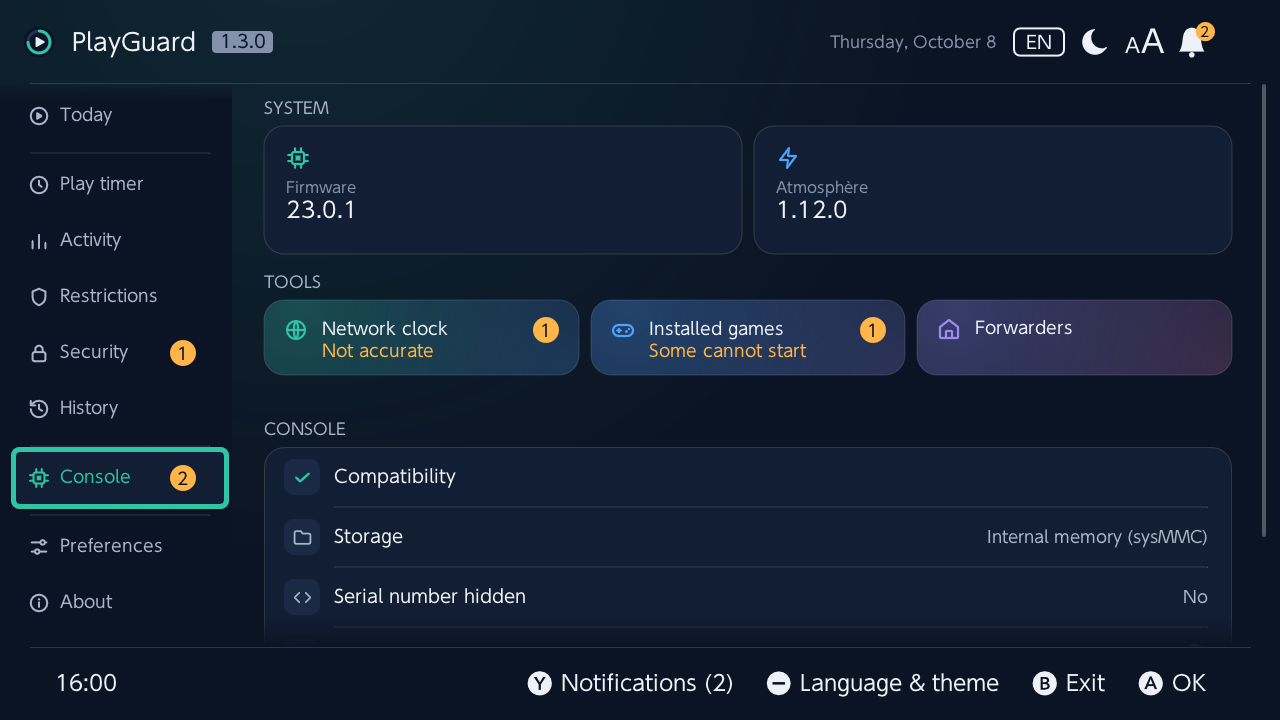
- Console — the network clock, the installed games, what the console runs
- Preferences
- About
- Safety by design
- What counts as play time
Controls
| Button | What it does |
|---|---|
| ↑/↓ | Move |
| Ⓐ | Confirm |
| Ⓑ | Back or cancel (twice on the sidebar to exit) |
| Ⓧ | Refresh (on the tabs that read the console) |
| Ⓨ | Notifications, from any tab |
| − | Language and theme, from any tab (in the footer, left out first when a screen's own keys need the room) |
| + | Saves per-day limits (and the week edited on Play timer) |
| ZR | Undo, for a few seconds after a change is saved |
The app is organised in tabs, like System Settings; each has its section below.
- What failed is said in a dialog, what worked in a toast. A dialog only says what applies to this console now: that the game in progress would be suspended, only while a game is open; that the companion app could overwrite a change, only while it is linked and can sync.
- The header says, on every tab, while parental controls are temporarily unlocked (its pill), and while the app is read-only (its pill then says Read-only, the actions that would write greyed and refused with where to turn it off); a tap on it goes where it is undone (Today › Turn back on, the firmware screen or Help & diagnostics). The footer shows the keys that open them from any tab: ⊖ for the language and theme, Ⓨ for the notifications (with their count).
- In read-only mode, actions stay in place, greyed, and say why when pressed.
The look: Cadran
PlayGuard's look is called Cadran: an icon rail for the tabs, a navy or cool-white palette (with the theme), cards instead of lists. Each tab opens on what matters most (a ring, tiles, cards, chips), its other settings underneath.
- The header's pill says what the tab is about (Parental controls on, Play timer on…); while parental controls are unlocked it says so on every tab, and a tap on it opens Today › Turn back on; while they are paused for you (see below) it says Parental controls paused, calmly, and a tap says what that is. Secondary text is never under 15 px, to read from the couch on a TV. The footer's clock shows the hours and minutes (16:00).
- Dialogs are cards with their buttons as pills, the confirmation in teal (in coral when it removes or stops something).
- The choices open as a card above the hints, the current one on a soft teal with its check. The teal ring is the focus's alone, everywhere: a level, an account, a choice in force keeps the soft fill.
- A long dialog fades at its foot while more follows, and its warning (a game about to be suspended) comes first, in an amber card.
- A failure names what failed as its title, the error code small under the reason, and offers Send a report when one helps.
- Messages appear as cards under the header, with a teal check for what was done and an amber mark for what was refused.
- The other screens take the same look: a profile's per-day editor shows the week as on Play timer (edited the same way, the quick fills as tiles); Installed games and All games put their lines in cards; Profiles and Help & diagnostics give each line its icon.
- Text size (Preferences, or AA in the header):
- Automatic, the default, makes every text 25 % bigger while the console is docked, on the TV, and puts it back in handheld mode; Larger keeps it bigger, Normal never.
- The sidebar's tab names grow too, by 25 % as well; the header's title, pill and date and the footer's button hints and clock grow a little less (15 to 20 %), their rows being full already. A name too long for its room in a language is drawn a little smaller, never smaller than in normal size, rather than cut. The Restrictions levels' names keep their size, large already.
- It changes at once, on every screen, with no restart.
- The 25 % come from a 55" TV in 4K: the smallest text (15 px) is then 14.6 mm high in capitals, 20′ of arc from 2.5 m, where reading is comfortable (16′ in normal size, the bare minimum).
- Visual effects (Preferences): Automatic: full on the TV, the default, keeps the background glow and every movement of the look while the console is on its dock: the screens and their lines rising into place, the ring drawing itself and sweeping to a new value, the beat of the child screen's ring in its last minutes, the small answers to a press. In hand (handheld or on its stand, charging or not) it leaves all of them out, and docking the console brings them back. Always full keeps them in hand too. Reduced motion leaves out every movement for show, on the dock too, and keeps the glow: for whom motion tires.
- Undo: after a change is saved, ZR Undo stays in the footer for a few seconds: it opens that change in the change history, to put the previous value back. An empty change history says so in a card.
Notifications — what needs you, from any tab
A bell in the header, left of the version, gathers what needs the parent; Ⓨ opens the list from any tab (the bell's badge says 2 when two things are to do).
Left of the bell, the language (its code, FR, EN…) and the theme (a sun for light, a moon for dark, a half-filled circle when it follows the console), then the text size (AA, its large A in teal while the text is larger): a tap opens the same list as Preferences, and − offers them from any tab. A new theme or language takes effect at once, every screen made again on the same tab with the focus on the same line, Chinese and its own font included.
To do
Each with an amber warning sign, counted on the bell in amber; it stays until it is fixed:
- no PIN yet, or a PIN anyone would try first (0000, 1234, 1212, 2580…: judged on the console, never shown);
- a PIN on the console while PlayGuard itself opens without it (Protect PlayGuard with the PIN on Never);
- parental controls temporarily unlocked (Turn back on);
- extra time from an earlier day still to put back;
- the "time's up" alarm off;
- changes made outside PlayGuard;
- the console not counting play time;
- an inaccurate network clock.
For information
Each with an "i", a dot on the bell; it can be marked as read:
- a limit still lowered by No more play today on an earlier day (Put back);
- a new version installed (What's new; after an update in place, the previous build kept), or a newer version of PlayGuard;
- a report sent online (Show the link), or PlayGuard closed unexpectedly last time (Send a report);
- the week's play time (every 7 days until read; with how it compares with the week before, per day), and a limit passed on two or more of the last 7 days while the console only warns;
- a settings backup to make (none yet, or none for 30 days);
- all games blocked for a week;
- a new user account;
- the companion app linked;
- the network clock found off at start-up.
Console
The entries about the console rather than the parental controls come last, on one line that Ⓐ opens (open at once when nothing else is there). Those to do are counted on the Console tab's badge, not on the bell:
- installed games that cannot start (Check the installed games), game patches that need a look;
- the SD card almost full (under 500 MB);
- one of PlayGuard's own files that could not be put aside or written to the SD card;
- the recovery sysmodule out of date (not the one this version ships with, or installed before it said its version; Update puts in the one this version carries), then the console to restart for it, until it has;
- a build that did not finish starting and was gone back from (Send a report).
Those for information: a build gone back from, a firmware not tested with this version, a newer Atmosphère, hekate or firmware (checked with Check for updates every day; the firmware's entry says to wait until Atmosphère supports it), the serial number not blanked on emuMMC, the other system's own parental controls, one of PlayGuard's own files found damaged and put aside (a toast at start-up points to it).
How entries behave
- Each section lists its entries in a fixed order, whichever check finished first.
- In the sidebar, an amber badge by a tab's name counts its entries to do, where they are fixed: the Security tab (no PIN, a weak PIN, PlayGuard without its PIN, temporarily unlocked), the Play timer (the alarm off, the console not counting), Today (changes made outside PlayGuard, extra time to put back), the Console (its entries above, and the network clock). Ignored entries and those for information are not counted.
- In the tab, the same badge is on the row where each is fixed (Network clock, Installed games, Storage, Game patches; Set or change the PIN, Protect PlayGuard with the PIN; the Play timer's Advanced for the alarm), and the tab opens on the first of them. A row with no value of its own says what the badge is for, in amber, before it (Easy to guess, Not accurate).
- Ⓐ on an entry does the fix (Turn it on, Set it, Update…) or opens the tab where it is made. An entry goes by itself once what it says is fixed.
- Ⓧ marks an entry for information as read; Ⓨ marks them all. An entry marked as read stays read at the next start, until its text changes.
- Ignoring: a few entries to do can be ignored with Ⓧ, after a confirmation and the PIN: a PIN anyone would try first, PlayGuard opening without the PIN, the "time's up" alarm off, the SD card almost full (never no PIN, unlocked controls, the clock, the play timer not counting or PlayGuard's own files). An ignored entry is no longer counted, and is listed last under Ignored, where Ⓐ counts it again. It comes back by itself 30 days later (unless Count ignored warnings again after 30 days is off), once what it says is fixed and then happens again, or, for the PIN, for a new PIN of another length.
- Preferences › Notifications turns off three kinds: Atmosphère, hekate and firmware releases; the week's play time; reminders (backups, the console's second system, blocked games).
- The state behind it is read when PlayGuard starts, every minute on the main screen, and every 5 s while Today is shown.
Today — the day at a glance
The ring and the line
The time left as a ring: a day without play says No play, not 0 min; the extra time given today shows as a lighter segment at its end, and the ring moves to each new value.
Under it, what stops play first:
- before the time up or the bedtime alarm, the rest of the day as a line, now at its left, each of them a mark with its time (16:40 time is up, 21:00 bedtime), teal up to the first, amber in its last 15 minutes;
- otherwise in words: the bedtime alarm once the day's time is spent, when games are allowed again; while parental controls are unlocked, today's limit on hold and why.
The actions
- Extra time, its amounts in one row (+15 min, +30 min, +1 h), each one press away, then … for any other (a duration, another day): an amount focused moves the time up on the line (with 15 min more), or says on the bedtime alarm's mark that it still comes first; the first one stands out in teal once 15 min or less are left, or none.
- Stop for today, Child view.
- Today's limit…: today's limit picked there and then, written after one confirmation.
- The profile in force, by its name, once a profile is saved (Profiles… when none matches): Ⓐ lists them, the one in force ticked, to put another in force after one confirmation (the days that change), or Manage the profiles….
- While parental controls are unlocked, Turn back on comes first, the row's whole width, and Extra time steps aside.
- With no limit on any day, Set the week's limits opens the week on Play timer.
The cards and pills
- The bedtime alarm (when games are allowed again, or in how long it rings when the console does not say; off, Off in large and Ⓐ Set it), parental controls and the network clock, as cards.
- The console's state as pills:
- one says whether Atmosphère's DNS redirection blocks Nintendo's servers, and Ⓐ on it which ones and what that changes: no sync for the companion app, no network clock setting itself;
- another, opened as an application, that the time spent in PlayGuard counts: as that game when opened over a game (Opened from a game), under its icon's name when started from a forwarder on the HOME menu (Opened from its HOME icon), Ⓐ saying how;
- a game left open on the HOME menu shows as an amber pill (still counts, Ⓐ saying why), when the pill about PlayGuard's own time does not say it already;
- neither while parental controls are paused for you: the time spent here then is not the child's.
- The pills put what needs the parent first (amber, with a triangle), then what is on (teal, with a check), then the rest (grey, with a dot): the shape says it as well as the colour.
- What is fine and what is only said fold into one pill after those that need the parent (✓ 3 checks fine); Ⓐ on it shows them, for as long as the tab is open.
- Under the pills, the extra time still to put back (Ⓐ puts it back) and the "time's up" alarm while it is off (Ⓐ turns it back on).
First steps
Until the PIN and the week's limits are set, a card above the cards lists the three steps (the PIN, a daily limit, the network clock), each ticked in teal once done or ringed in amber, with how many are done (1 of 3); Ⓐ on one does it there.
Is the console counting?
PlayGuard's own time counts while it runs as an application, so with a limit today the time left should go down while it is open. When it has not moved for about 90 s on screen (timer on, a limit today, not unlocked nor paused for you, not opened from the album), an amber line under the time played says The console is not counting play time right now, with the likely causes:
- the clock was set back (it counts again later);
- the network clock was never set (Console › Network clock);
- a limit was just written (start a game for a minute, then check).
It goes as soon as the time left moves again. The Play timer says it too.
Changed outside PlayGuard
Today's play time starting over on the same day (a clock change does that), the console clock moved by more than 5 minutes, limits that differ from the ones PlayGuard last saw (the phone app, another tool): an amber card above the ring until dismissed (Ⓐ) or the next day, and an entry in the change history. PlayGuard does not run in the background: it only sees what changed while it was open, or since it last was, when it reads the console again.
At the limit
The console shows "Time's up", then suspends the game (no "continue") or only warns: When the time is up shows which and changes it, once a limit or a bedtime is set (details).
Extra time and no more play today
- Extra time today: +15 min, +30 min, +1 h by default.
- No more play today: limit 0 for today only, now or in 5 minutes when the time played is known (the limit then becomes the time played + 5 min, time to save). At the lock the console's "Time's up" comes up, and unsaved progress may be lost — the confirmation says so.
- The next day — at start-up, or at midnight if the app is open — PlayGuard puts the usual limit back:
- after extra time, by itself, with no question and no PIN (it only lowers the limit, as turning parental controls back on does), unlocking for a moment if the timer is counting and locking again at once. It waits while it cannot write (read-only mode, a firmware it does not support, Block all games on) and, a week later on the same day, while the lower limit would stop the game in progress (then the next day). To keep more time on a day, change that day's limit;
- after No more play today, it asks whether to keep 0 or put the limit back (through the PIN, as any change that raises a limit), or puts it back as any change (Play timer › Put the limit back by itself after "No more play today"); "no limit" to put back is always asked.
- Extra time on another day (Extra time › Another day…, at the end of its list): tomorrow or one of the five days after, each listed with its limit, then the amount. That day's limit is raised now, for that date only, and put back by itself (it only lowers the limit) the next time PlayGuard is opened once the day is over — not on a console PlayGuard is not opened on, where the next same day keeps it too. One at a time: the list then offers to remove it (its limit back at once). A change of that day's limit meanwhile (the week, a profile…) wins: nothing is put back.
The child screen
Child view on Today, to hand the console over:
- only the time left (while parental controls are unlocked, today's limit, on hold), when play ends (Ends around 16:40; when the bedtime alarm comes first, the ring counts down to it instead, 45 min until bedtime, as it does in the last hour of a day without a limit), the bedtime and what happens when time is up;
- sized to be read from across the room, on the TV; its text keeps its size whatever the text size (only the title and the footer, as on every screen, follow it);
- in the last 5 minutes (of play or before the bedtime), the end turns amber and the ring pulses slowly; the bedtime turns amber in its last 30;
- Ⓐ and Ⓨ, the parent's keys, are said small at the top right, so the footer shows the child's alone;
- Ⓐ goes back to the parent's screens with the PIN; Ⓨ gives extra time from there, after the PIN (the amounts of Extra time, the child screen staying); Ⓑ leaves PlayGuard (asking first to turn parental controls back on, as quitting does).
In larger text, Today still fits on one screen: the line above the headline says only the day and its limit (THURSDAY · 2 h), the buttons and the cards are a little tighter. It refreshes every 5 s (Ⓧ refreshes now).
Play timer — the week is the editor
Editing the week
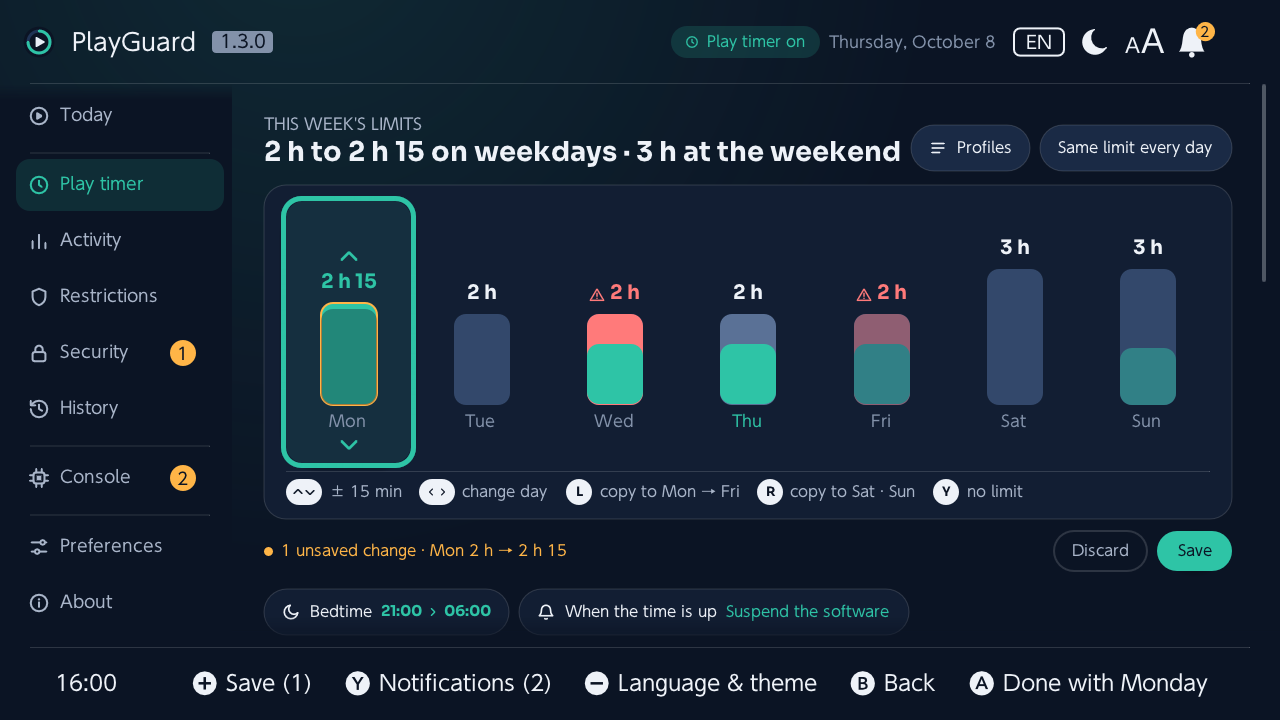
Ⓐ on a day edits it:
| Button | In the edit |
|---|---|
| ↑/↓ | Change it by 15 min, by the hour once held |
| ←/→ | Move to the next day |
| Ⓛ | Copy it to Monday–Friday |
| Ⓡ | Copy it to the weekend |
| Ⓨ | No limit |
| Ⓧ | An exact time (Enter a duration…: ↑/↓ by 15 min, by the hour once held, Ⓛ/Ⓡ by 5 min, OK focused) |
| Ⓐ or Ⓑ | End the edit (Ⓐ says which day: Done with Monday; nothing is saved yet) |
- By touch, a day tapped is edited, then a tap on its top or bottom changes it by 15 min.
- The changes are saved together, with + or Save, as in the per-day editor (the confirmation lists the days changed, before → after); Discard puts them back.
- Inside each day's bar, the time played on its last occurrence (today's included, every account). Past the limit, the bar is full and its top in coral, as much of it as the time over the limit is of the time played; a key under the week says so (over the limit), and the limit too is in coral. The days after today show last week's play, fainter (focused: Last Friday: 2 h 10 played of 2 h).
- A day changed and not saved yet has its limit in amber and its bar ringed in amber; under the week, the focused day's figures (Thursday: 1 h 20 played of 2 h).
- Above the week, in amber, a limit reached and what the console does then, or the console not counting play time.
0minutes means no play that day; Remove the play-time limit turns the timer off.
Chips and quick settings
Chips above and below the week open their choices at once: the profiles (how many are saved), the same limit every day, the bedtime alarm and When the time is up. Remove the limit is the tab's last line, apart (History undoes it).
- Same limit every day: a quick list or an exact duration (Enter a duration…: ↑/↓ by 15 min, by the hour once held, Ⓛ/Ⓡ by 5 min).
- Weekdays and weekend ›: the editor, asking for Monday–Friday then for the weekend.
- Extra time or no more play today › opens Today, where both are. A note under it says what the console does at the limit. While parental controls are temporarily unlocked, play time may not be counted: that is still open (docs).
- Every confirmation lists the days that change, before → after.
Profiles
- Profiles saved on the SD card: apply (a profile already in force just says so), edit, rename or delete one; save the current limits or make a new one.
- Any name, in any script (École, 周末, Выходные …) — a name without Latin letters gets a file name of its own, and two names that would map to the same file are caught.
- Scheduled profile (Profiles › Scheduled profile): Soon. PlayGuard runs only while it is open, so it cannot switch a profile on the right day by itself: switching profiles from a calendar or the school holidays comes with the MQTT bridge (Home Assistant). A profile scheduled with an earlier version is still offered when its period begins, and the line still changes, removes or ends it.
Block all games
Block all games, under the week's settings: one switch that sets every day's limit to 0, so a PIN is needed to start a game — a light block without age ratings or communication limits.
- It blocks starting games, not the HOME menu, and needs a PIN.
- The previous limits come back when it is turned off.
- While it is on, extra time and no more play today are refused, and limits set another way (a profile, a backup, the history…) replace it.
Bedtime alarm
- The alarm time (16:00 to 23:45, or Off) and when play is allowed again (05:00 to 09:00), the same every day, set with the stick: up and down a quarter of an hour, L and R an hour.
- Or, with Ⓨ By day in the alarm's dialog, Monday to Friday, the weekend or one day, the other days keeping theirs (each set of days listed with its time). When the days differ, the tab says Varies by day, and the week on Play timer shows each day's alarm under its name.
- Its place in the play-timer settings, worked out from the companion app's settings, is verified on a console (22.0.0); PlayGuard still changes it only once the console reports what PlayGuard reads there, checks the console's answer after the change and puts the previous settings back if it differs.
Extra time settings and Advanced
- Extra time: the amounts offered (+15/+30/+1 h, +10/+20/+30 min …) and putting the usual limit back without asking after No more play today (extra time always comes back without asking). Either is done the next time PlayGuard is opened, from the next day on: a console it is not opened on keeps the limit of that day.
- Advanced ›, a screen of its own: the switch for the debug-class actions and, while it is on, the "time's up" alarm on/off and pause / resume the countdown. The same switch lets a backup or the history put the alarm back.
Activity — who played what, and how long
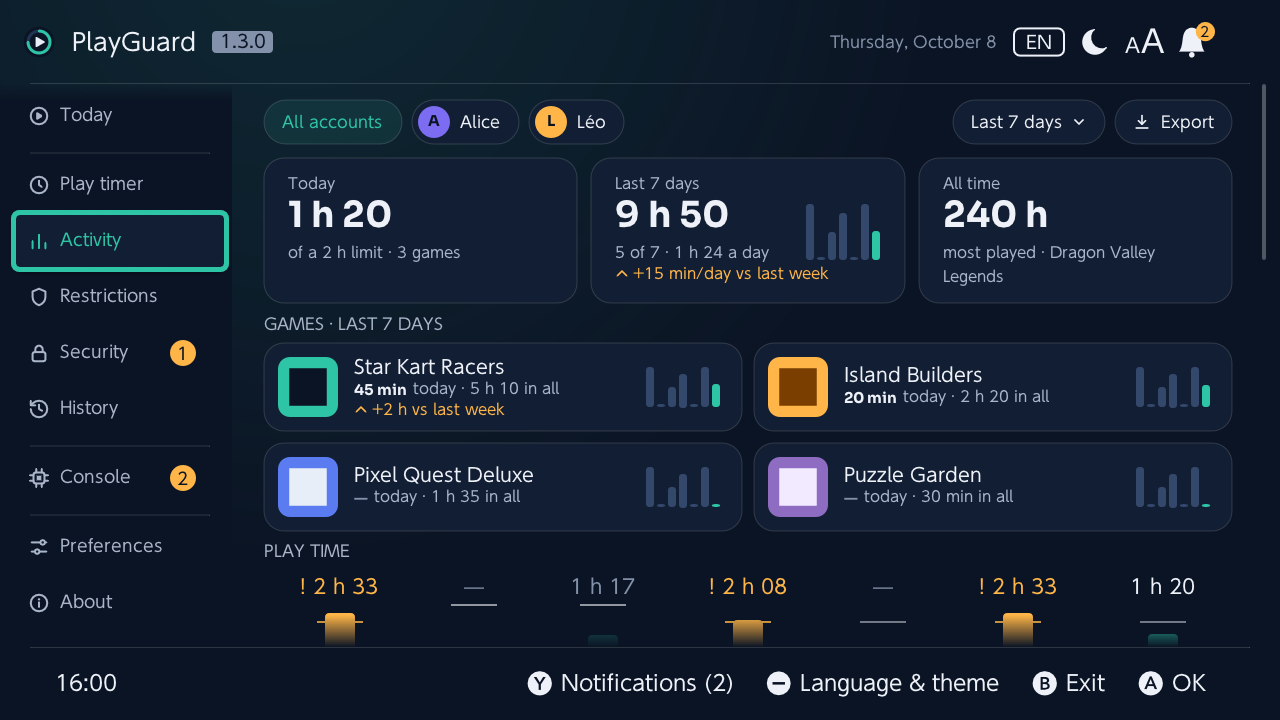
Time per game today, in the last 7 days and in all, from the console's own activity log — for every account or one user account (the accounts as chips at the top, when the console has several). PlayGuard starts on the account shown last, or on the one set under Account shown first (every account, or one; at the bottom of the tab, with All games).
At the top
- The accounts as chips, the period and Export.
- Today, the last 7 days and all time as figures. Under the last 7 days, how they compare with the 7 before, per day: ▲ +20 min/day vs last week in amber, ▼ less in teal, same as last week within 5 minutes.
- The four games most played as cards (Ⓐ opens one); over the last 7 days, the one played most more than the week before says by how much, from half an hour (▲ +2 h vs last week).
- Nothing played over the period: a card says so, with See all time when there is something to see.
Charts and summary
- A chart of the last seven days (today on the right, a legend under it), with this week's limit for each day as a line and the time over it in amber, marked !; today's, the week's and all-time totals.
- A summary over the chosen period (today, the last 7 days, the last 30 days or all time), for the account shown: average per day, the most played game, the days played and the busiest one (last 7 days), the average session (all time).
- Hours played, last 7 days: a square for each hour of each day, Monday first, the stronger the more was played (every game, the account shown); then the sessions (play with breaks under 5 minutes is one session, a game changed included) and their average length, the longest one and its day, the two busiest hours in a row, and the time played between 21:00 and 06:00.
All games and a game's page
- All games, on a screen of their own: every game played over the period, most played first, as a grid of covers or a list (Ⓨ switches, and the choice is kept), with the selected game's figures always on top: its icon and name, the period's play time, all time, launches and last play. Ⓧ picks the period (the Activity tab follows).
- Icons are read around the selected game (not in applet mode, to spare memory); a grey controller stands in until one arrives, and for a game without one.
- A large library shows its first 50 games, then Show every game (100 games at most in applet mode); the export always holds them all. PlayGuard reads 256 games at most (this week's first): beyond that, the Activity tab, All games and the export (not CSV) say that some are missing, and the all-time total leaves them out.
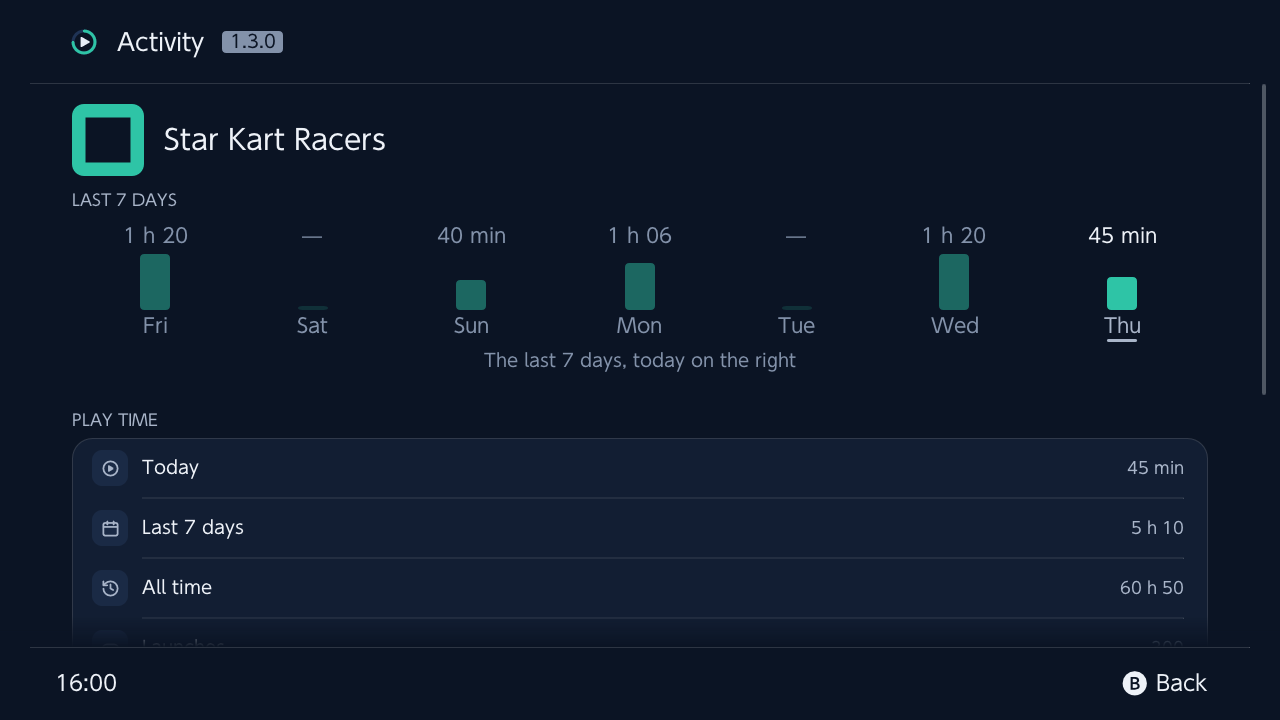
- Ⓐ on a game: its last seven days as bars, launches, first and last play, time per user account. Deleted games keep their all-time figures, even one deleted before PlayGuard was installed as long as the console's play log still names it, and their name once PlayGuard has seen it (else Deleted game and its title ID).
Accounts
- A game's time that no user account holds (some games never ask for one, or the account was deleted since) shows as No account, from a minute up.
- A user account PlayGuard never saw before is flagged in amber on the tab for 30 days (New account since …, a fresh account is a known way to start over) and recorded in the change history; the accounts there when PlayGuard first lists them are not flagged.
Export
- Export to the SD card (Export) as CSV, JSON, XLSX (Excel) or PDF, one column per day, then the last 7 days, the last 30 days and all time.
- Opens at once on the last figures read (kept on the SD card between runs), refreshed in the background when over a minute old; Ⓧ reads them again now, with a spinner.
- Times are approximate if the console clock was changed.
Restrictions — level, age rating, communication
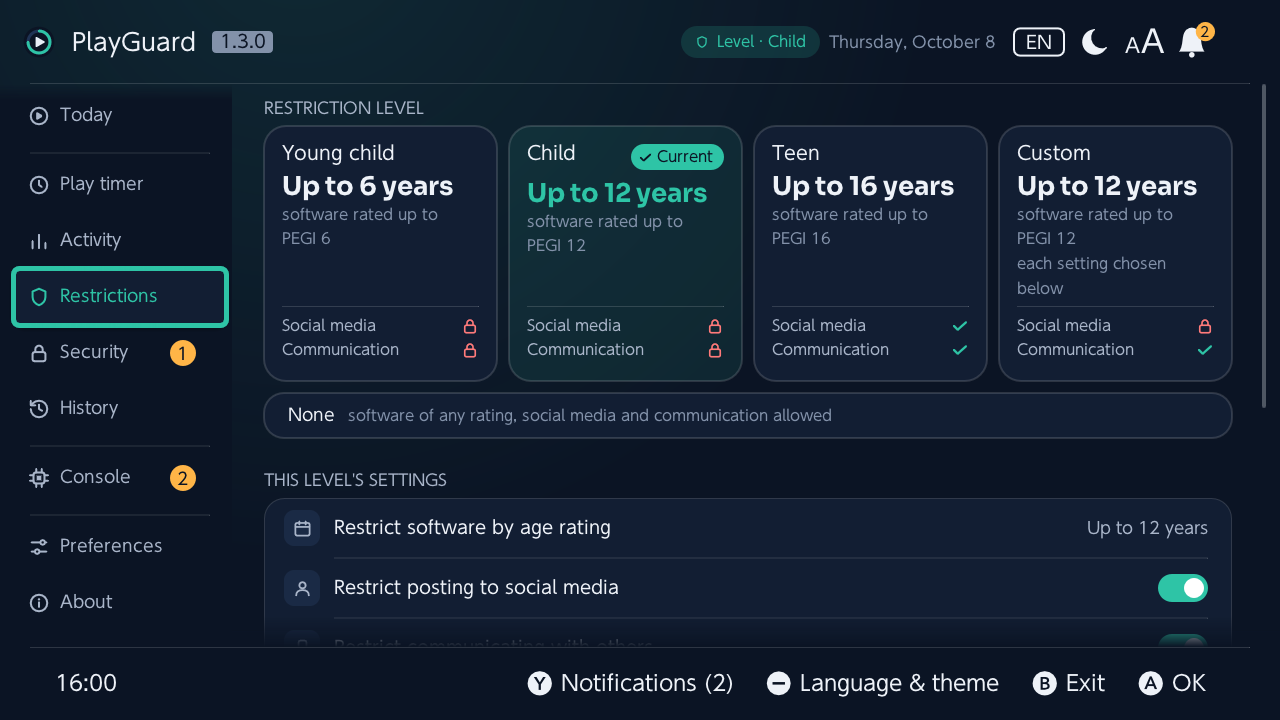
- The restriction level: Young child, Child, Teen and Custom side by side as tiles, each with what it restricts (a coral padlock for restricted, a green check otherwise, and the installed games it blocks; Ⓐ sets it; on Custom in force, Ⓐ goes to its settings below); None under them. The level in force says ✓ Current; the teal ring is only where the focus is. What a level restricts (age limit, posting, communication) is said again before it is set; None asks in coral, as it lifts every restriction.
- The level's settings: age rating, social-media posting, communication with others. Under a preset, they are its own: changing one makes the level Custom, from the preset's settings with that change, asked first (the settings listed).
- Under Age rating, the rating organisation (PEGI, ESRB, USK, CERO …): the list says the countries each one rates for (PEGI: most of Europe, ESRB: the United States, Canada and Latin America, USK: Germany, PEGI BBFC: the United Kingdom…).
- Installed games it blocks (under Age rating too): how many of the installed games the level in force blocks by their age rating (3 of 15), Ⓐ listing them with their rating (PEGI 16); each level's tile says it too (Games blocked · 3).
- The ratings are each game's own (its control data, read by the check of the installed games at start-up or from Console › Installed games), by the organisation the console uses.
- A game that organisation does not rate is not counted, nor the exceptions set in the companion app.
- A game's screen in Activity shows its rating, and blocked at the current level when it is.
- Under Other, VR mode. The games allowed to communicate are in the diagnostic report, raw, until their list is understood.
Security — the PIN, unlocking, the homebrew menu, companion app
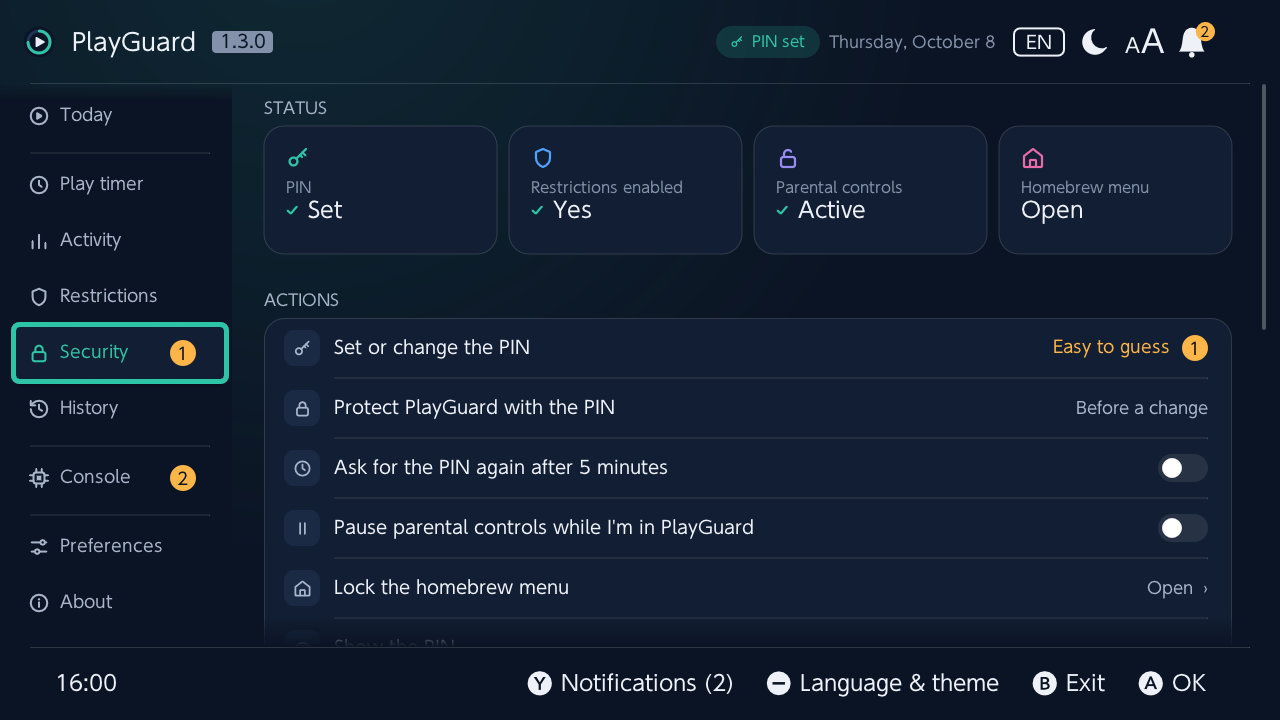
- At the top, four tiles: the PIN, the restrictions, the temporary unlock and the homebrew menu, each with a teal check when it is as it should be (a PIN set, restrictions on, locked) or an amber warning when it needs you; the homebrew menu says Open or Locked (a check once locked: open is fine without forwarders).
- Set / change the PIN (system PIN screen).
- Show the PIN: after a warning and the PIN itself, asked every time; recorded in the history, then a new PIN is offered.
- Unlock temporarily, and whether PlayGuard turns them back on by itself right after a change that needed the unlock (on by default).
Protect PlayGuard with the PIN
The PIN in PlayGuard itself:
| Setting | Effect |
|---|---|
| Never | No PIN in PlayGuard (the bell flags it while the console has one) |
| Before a change (default) | Anyone can look, only the parent changes something |
| To open PlayGuard | A lock screen at start |
- Once entered, the PIN holds until PlayGuard closes; Ask for the PIN again after 5 minutes (off by default) asks again after them, and brings To open PlayGuard's lock screen back when PlayGuard returns after 5 min or more out of focus.
- Checked in the service layer, so no change skips it; locking again never asks. Show the PIN asks for it every time, in every mode and even right after it was entered, and a missing or damaged
config.jsoncounts as Before a change.
The PIN pauses parental controls while you are in PlayGuard
- Only with Security › Pause parental controls while I'm in PlayGuard on (off by default: then entering the PIN leaves parental controls as they are, and the time spent in PlayGuard counts as play time). Turning it on asks for the PIN.
- Once the PIN is entered (the lock screen of To open PlayGuard, the first change with Before a change, the child screen's way back…), PlayGuard unlocks parental controls temporarily, so the time spent in it does not take from the child's play time; Opened from a game leaves Today.
- The header's pill says Parental controls paused, in teal; a tap says what that is, with Turn back on now (then not paused again until the PIN is entered again). Today shows the day as it is for the child, and the Security tile says Parental controls paused with no warning.
- They come back on by themselves as soon as PlayGuard is left (HOME menu, sleep) or closed, from the HOME menu too (the exit waits for it), and while the child screen or the lock screen is up. Back in PlayGuard with the PIN still holding, they pause again.
- Not from the album (the time does not count there, and a game may be left open behind), not in read-only mode, and never over an unlock made with Unlock temporarily, which stays as it is.
- Recorded as any unlock: should PlayGuard stop without locking, its next start locks again, and a restart of the console does it by itself. It relies on the time not counting while unlocked, inferred but not measured yet (below).
- Lock the homebrew menu › opens Console › Forwarders, where it is locked after its checks (see Forwarders).
- Quitting while parental controls are still unlocked asks whether to lock them again (Turn back on and quit also closes the game PlayGuard was opened over, back to the HOME menu rather than hbmenu); closed from the HOME menu instead, PlayGuard locks them again the next time it starts, and a restart of the console locks them by itself. PlayGuard's own pause asks nothing: it ends as PlayGuard closes.
Companion app
- Whether the Nintendo Switch Parental Controls app is linked, its last sync, and unlink (otherwise its next sync overwrites the limits set here: while it is linked, every change PlayGuard asks to confirm says so).
- When Atmosphère's DNS redirection (
atmosphere/hosts) sends Nintendo's parental-control server elsewhere, the app cannot synchronize: PlayGuard then says sync blocked (DNS) here and mentions the app nowhere else (no note in the dialogs, no bell entry, no first-steps step, no pill on Today, no help to decode, and unlinking asks without saying what the app would overwrite). - While it is linked and can sync, Before unlinking: help decode… opens the block comparison (see CONTRIBUTING.md).
Delete all parental controls
Two confirmations, irreversible; a backup of the settings is saved first.
History — what PlayGuard changed, and the backups
At the top, how many changes are recorded and the day of the last backup as tiles: a teal check, or an amber warning when there is none or none for 30 days.
Change history
- The newest 500 changes PlayGuard made (limits, restriction level, PIN, unlocks, unlinking, the clock, restores, pausing or resuming the countdown …) and what it saw changed outside it, grouped by day (Today, Yesterday, then the day and date), with the time and from where; a limit changed on one day names that day.
- A change the console refused is listed too, in amber, with the console's error and what was tried (never put back: nothing changed).
- Show keeps one kind (play time, restrictions, security and app, seen outside PlayGuard, refused by the console); Export what is shown writes it to
exports/as CSV, JSON, XLSX or PDF. - Ⓐ on a change shows it and, for a value, puts the previous one back — through the same unlock and PIN as any change, saying if it changed since.
- Each change keeps the PlayGuard version that made it (a development build: said so, with its commit and, for a pull request's build, its number); a change recorded by a newer version of PlayGuard shows as Other change.
Backups
- Back up / restore the settings on the SD card: restriction level, custom settings, VR mode, rating organisation, daily limits, the "time's up" alarm (with the advanced actions on), and the raw play-timer block for the record — never the PIN.
- A restore lists only what would change (nothing to change: it just says so, with no unlock and nothing written), and says when the backup had a bedtime alarm on (it is not written back).
- Choose how many backups to keep.
Console — the network clock, the installed games, what the console runs
At the top, what the console runs as tiles, under System (the firmware, Atmosphère, hekate when it is on the SD card and sys-patch when it is installed; Ⓐ opens its release notes), then the tools as tiles, under Tools (Network clock, Installed games and Forwarders; the first two show what needs a look in their corner), then the console's lines, compatibility first (a teal check alone when PlayGuard was checked on this firmware, else a warning and what is wrong).
Network clock
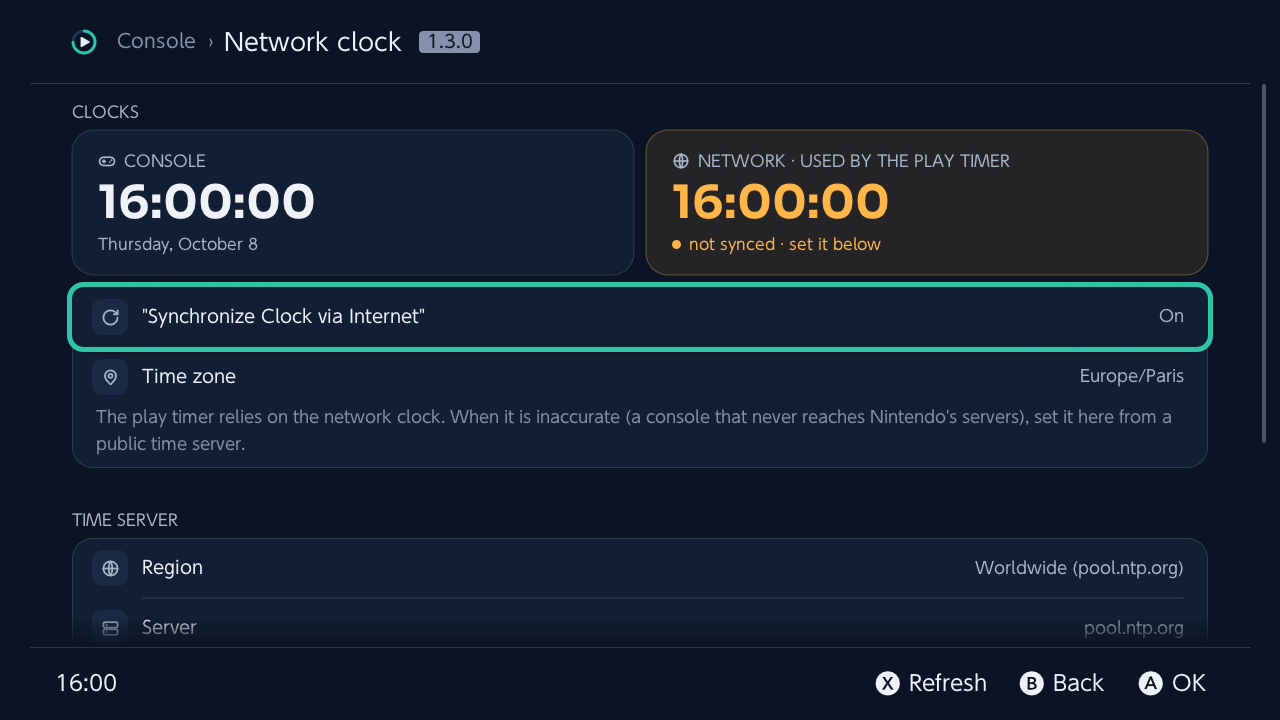
Network clock ›, a screen of its own — the clock the play timer relies on. A console that never reaches Nintendo's servers keeps this clock inaccurate, which skews the play timer.
- Console and network clocks, time zone, accuracy. When Atmosphère's DNS redirection (
atmosphere/hosts) sends Nintendo's time server (aauth-lp1.ndas.srv.nintendo.net) elsewhere, the console can no longer set its network clock itself: this screen, the bell's entry and Today's card say so and point to the measurement below. - Pick a public NTP server (≈ 50 built in, by region, or your own).
- Measure against 3 servers (median; an amber warning when they disagree): a dialog shows the result — how far the network clock is ahead or behind, in large, the servers' time beside the network clock's, each server's answer — and sets the network clock from there. A measurement stays usable for 2 minutes, with a countdown under Set the network clock. The confirmation says it: changing the clock starts today's play time over, so the whole limit is available again.
- A network-clock check at start-up: a toast when it is more than a minute off; it never sets the clock.
No server answers
On a console without Internet, Use the console clock is offered in the result's dialog, Set the network clock to the console clock under the measurement (and on Today's network clock card, after its measurement fails), behind the same confirmation.
- PlayGuard has nothing else to compare the console clock with: the confirmation shows its time and asks you to check it against a phone or a watch first, and a console clock before 2026 (never set) is refused.
- With Synchronize Clock via Internet off, the console clock stays where it is, and turning the setting on afterwards no longer makes it jump; with it on, the console clock already follows the network clock, so the confirmation says to turn it off and set the time by hand if it is wrong.
- It writes the clock only, not the parental controls, so it needs no unlock (the PIN of Protect PlayGuard with the PIN still applies); like any clock change, it starts today's play time over.
- Not tried on a console yet.
Installed games
Installed games (a tile under Console › Tools) finds the games the HOME menu cannot start or draw — an icon that keeps loading, a "!", a dotted frame — with what is wrong and what to do, under the game's icon, and how many installed games have a problem.
What it finds: name and icon unreadable, the game itself missing behind its update, nothing installed any more, files missing, corrupt data the console found, a newer firmware needed by the game or only by its update, keys too new for the firmware, a missing license (ticket), the console asking for an update that was removed, the SD card unreadable, a launch the console refuses.
The list has a section per way out, each with its count and what to do, the games with the same problem together (two games with the same name are told apart by their version or title ID):
| Section | What it holds |
|---|---|
| Fix here | What PlayGuard repairs |
| To check | Data the console suspects: the check says whether to install the game again |
| Reinstall | Files gone or unusable, or data found corrupt: remove, then install again |
| Firmware or SD card | The game is fine, the console is not |
- Checking data: what the data check found is kept with the game until another version is installed: corrupt, it moves to Reinstall as Corrupt (checked), with the date and the console's code; intact, it leaves the list. Check these games checks the whole of To check one game after the other in one dialog, their covers above it (game 2 of 5), then says how many are corrupt, intact or could not be checked, with removing the corrupt ones at hand.
- Several games at once: Ⓨ picks games (a check mark in front); from the first one picked, a line above the sections says how many, and A on it picks a whole section too, then one action for all of them: check their data, or remove them (their list saved first, one question, one PIN).
- Removing several: the covers float away as each game goes (a coral "!" on one that stays), the bar a segment a game (up to 20); at the end, how many were removed and what that freed, and the dialog closes by itself. Some left: their covers ringed in coral, and Try again for them.
- Under Reinstall, their list can be saved (JSON and text, in the exports folder: name, title ID, version, problem), and all of them removed at once after one question and one PIN: the list is saved first, then the games are removed so an installer no longer counts them as installed.
- The actions: when one action is the fix, it is the dialog's first button; the others follow: accept the installed version again (when the console asks for a removed update), remove only the update or an add-on, check the data for corruption (the console's own check, with its progress and Cancel), or remove the game.
- Versions are shown as the game shows them (version 1.4.0, update #4); after a repair, a toast says whether the game works again. Save data always stays; every change is in the change history.
- When it checks: the last check shows at once; then only the games whose entry changed are checked again (every game once a day, after a firmware update, or with Ⓧ Check again), each shown as soon as it is checked. Ⓧ Check again opens a dialog: the games' covers leafed through, a bar and the count; Cancel stops after the game under way, what was checked stays. With no game listed yet, the covers go by in the card while it checks.
- Several broken games at once points to the SD card or to a game installed from the other storage (sysMMC / emuMMC).
- Ⓡ shows the games as a list or as covers (icon, name and problem; the choice is kept), as All games does.
Forwarders
Forwarders ›, a screen of its own, a tile under Tools (also Security › Lock the homebrew menu) — a homebrew on the HOME menu, with its icon and its name, started from there like a game (an NRO forwarder, as sphaira makes them).
- A card at the top says where the homebrew menu stands: locked or open, its ways back (PlayGuard's forwarder, the protected menus, those never started from the HOME menu yet), what still opens it without the PIN, and whether the recovery sysmodule is installed. Ⓐ on it lists what to do about it, each a press away (the next step to a lock, protecting or deleting a forwarder that opens it without the PIN, the check, the rescue sheet).
- The list by group: PlayGuard's own, the others it made (protected or not, in one card: the icon says which), those another app made, those no longer on the HOME menu. A protected one has a padlock on its icon (a check for a menu seen working through its gate), one made here without the PIN an open padlock in amber.
- Ⓨ opens this part of the guide (a QR code). After deleting or forgetting a forwarder, or changing its hours without the PIN, Ask for the PIN or Closed once today's play time is used up, ZR puts it back for a few seconds (installed again with the same program ID, or the setting as it was).
- PlayGuard in one press: its own icon and name, the forwarder starting the
.nroPlayGuard was opened from. - Another homebrew: any
.nroof the SD card's/switchfolder (and one folder down), its name asked first (the.nro's own, to keep or change), then confirmed with what the HOME menu will show: its icon, its name and its publisher. Its icon is the.nro's, made the 256 × 256 JPEG the HOME menu draws when it is another size or a PNG (a controller in its place when the.nrohas none), as sphaira does. A path with a space is handed to the homebrew quoted. - The forwarders on the HOME menu, each with its icon: those PlayGuard made (Ⓐ: details, rename, change the publisher, install again, delete) and those another app made (details, delete). Ⓐ opens a sheet in sections (This forwarder, At launch, Protection, Install and delete) under its icon and its state, each line with its icon and what is set now (its hours; a switch for Ask for the PIN, Closed once today's play time is used up and each launch option), Delete in red; B or a touch outside it closes it. Details lists its rules the same way, then its publisher, version,
.nroand program ID; Ⓐ on a rule (or the publisher) changes it, as in the sheet. Under the protected ones, a line says what each icon shown there means. One whose.nrois gone says so; one deleted in System Settings stays listed until it is installed again or forgotten. Installing again keeps its program ID, so the HOME menu's entry is replaced, not doubled; a forwarder another tool made for the same.nrois replaced too. - Protected with the PIN (Ⓐ › Protect with the PIN, for one PlayGuard made other than its own): started from the HOME menu, the forwarder first opens a small gate (
config/playguard/gate.nro, a few hundred kilobytes that PlayGuard writes from its own files), which shows the console's PIN screen at once, then the homebrew once the PIN is right; B there goes back to the HOME menu. Around the PIN screen, the gate's own: the homebrew's icon and name, Protected by PlayGuard, and how it went (starting, in its free hours, PIN not entered), laid out as PlayGuard's loading screen, in its language and theme (Preferences) (make gate-previewdraws it on a computer). It keeps its program ID and its icon, and the change history has it. Its row shows its rules as icons, one for each turned on: a key for the PIN, an open lock for hours without it, a square (stop) for hours it never opens, a timer for closed once today's play time is used up; Details (Ⓐ) has them in words. It needs a PIN on the console. No longer ask for the PIN asks for it first, whatever Protect PlayGuard with the PIN says, and so do deleting it and making it again without the PIN (Add a forwarder for the same.nro). It guards the HOME menu's icon only: the.nrostill starts from the homebrew menu, unless that is locked (below). A forwarder protected by an earlier PlayGuard starts PlayGuard itself as its gate, which still works; Install them all again moves it to the small gate. - Hours without the PIN (Ⓐ on a protected one): every day, Monday to Friday or the weekend, from one hour to another (past midnight too), or Monday to Friday, and the weekend apart (a span for each); Details says when. Setting them asks for the PIN. They follow the console clock, which System Settings can change: once it is more than 5 minutes away from the network clock, the gate asks for the PIN in them all the same (No free hours: the console clock differs from the network clock), and so it does when the network clock cannot be read to check it (No free hours: the network clock cannot be read.); Console › Network clock sets both right, on a console without Internet too.
- Hours it never opens (Ⓐ on a protected one), set the same way: then the gate says Not at this time and the hours, and goes back to the HOME menu, even with a PIN entered (bedtime for homebrew). They come before the hours without the PIN. With the console clock more than 5 minutes away from the network clock, it stays closed when either clock is in them, and a pause after refusals counts by the network clock and by the console's steady clock (which no setting moves), so moving the time does not get round them.
- Closed once today's play time is used up (Ⓐ on a protected one): when the console's play timer has no time left today, the gate says Today's play time is used up and goes back to the HOME menu, PIN or not. Off unless set.
- The rules are in the forwarder, not on the SD card: the hours, the day's limit and the pause after refusals go into the forwarder's own data (on the console's storage), so a computer cannot add free hours by editing a file; changing one makes the forwarder again, in a few seconds. The forwarder also keeps the gate's SHA-256 (
config/playguard/gate-<hash>.nro): a gate changed on the SD card is not started (error 2347-0100, troubleshooting). One protected by an earlier PlayGuard reads its rules from the card: its hours without the PIN are not honoured then, and the bell offers Make again. - A pause after refused PINs (Pause after refused PINs, under Homebrew menu): five refusals in a row (B on the PIN screen) and the forwarder does not ask again for 15 minutes, the gate saying until when; 3, 5 or 10 tries and 15 minutes or an hour, or never. The bell says which forwarder is paused, its row too (a pause icon, and until when); Lift the pause (Ⓐ on it, the PIN asked) makes it ask again at once. Each pause and each lifted one is in the change history.
- Every try is in the change history: opened with the PIN, opened in its hours, or refused (B on the PIN screen), at the time it happened; the tries of one kind on one day for one forwarder make one entry, with their times. The gate notes them on the SD card; PlayGuard reads them at its next start. History › Show › Homebrew and forwarders lists only these, the forwarders and the lock.
- Tries this week (in History and under Homebrew menu): for the last seven days, each forwarder's openings, its refusals and on which days, and the times it did not open; kept four weeks. When this week's refusals are more than twice the week before's (five at least), the bell says so.
- The gate's screen says more: its hours without the PIN while it asks, and the day's refusals so far (in amber) while it asks and once refused, under Ask a parent to enter the PIN. After Protected by PlayGuard, an icon for each rule it carries, as its row in PlayGuard: an open padlock (hours without the PIN), a square (hours it never opens), a timer (today's play time). Once refused, Ⓐ tries again and Ⓑ goes back to the HOME menu (so does waiting 15 seconds), until the pause after refusals starts. It also says until when it opens without the PIN, when a pause ends (in 12 min), today's play time left (with Closed once today's play time is used up), and the error code when the PIN screen cannot open. The icon's frame takes the colour of how it went. Should the gate ever stop on its way to the homebrew, it ends after 10 seconds, back to the HOME menu, rather than leave the console on its screen.
- The opening screen (Opening screen, under Homebrew menu): started from the HOME menu, the gate first opens the homebrew the way PlayGuard opens itself: centred on the night blue with Cadran's dial on the right, the homebrew's icon over a soft teal glow, its name, Protected by PlayGuard, a bar filling and PlayGuard's mark with its ring turning at the bottom. Then the console's PIN screen, and the homebrew at once once the PIN is right (in its free hours, straight after the bar). It lasts 2 seconds unless set to 1, 3 or 5 seconds, or Off (the PIN screen at once); Ⓐ or Ⓑ skip the rest, and trying again after a refusal does not show it again. It is read from the SD card at each start (
config/playguard/gate_wait.txt), so changing it does not make the forwarders again. - Its icon from the album (Ⓐ › Change the icon): the album's newest 30 screenshots as a grid of the icons they would make, the
.nro's own first and the one in use checked; beside it, the icon the HOME menu shows now and the one it will show, the game the screenshot was taken in and when (Today, Yesterday, to the second when two were taken the same minute). L and R move the icon's square along the screenshot (five places, from its left edge to its right one), Y takes the.nro's own back, A the one in focus: it becomes the HOME menu's 256 × 256 JPEG. Installing again keeps it, its square too. - Icons and languages: an icon of another size, a PNG, or a JPEG with EXIF data or progressive coding (the HOME menu shows those as a “?”) is made a plain 256 × 256 JPEG. The forwarder's control data lists American English alone, the language of its one icon: so the icon shows on a console set to any language.
- At launch (Ⓐ on a forwarder, as sphaira's forwarder options): Choose a user at launch (off by default) asks which user plays when it starts, as a game does, so its play time is that user's in Activity (a parent's own profile keeps the child's statistics as they are); the console's own play-time limit still counts it, whoever plays, as it counts every game. Screenshots and Video capture (on by default) let the Capture button take them. Each switch asks for the PIN and makes the forwarder again (the same program ID), and is in the change history; Details lists them.
- Protect every forwarder with the PIN and Install them all again (a new
.nro's icon and version, the gate as this PlayGuard carries it, one deleted from the HOME menu put back): in one press each. - Lock the homebrew menu (Homebrew menu, last on the screen): neither the album nor a game started while R is held opens the homebrew menu any more, so a homebrew starts only from its forwarder, which can ask for the PIN.
- Step by step: until it can be locked, Ⓐ lists the steps, numbered, the next one in amber and a press away (Next step): a PIN, the signature patches, PlayGuard's forwarder, a homebrew menu protected with the PIN (sphaira found in
/switch, else hbmenu, made protected in one go), started once from the HOME menu; the list comes back after each step that makes a forwarder. - It takes two ways back to PlayGuard from the HOME menu: its own forwarder, and a forwarder of a homebrew menu (sphaira or hbmenu, by the
.nro's name) protected with the PIN, which keeps every homebrew, a homebrew store included, a PIN away. And a PIN on the console, and the signature patches forwarders need. Until then, Ⓐ says what is missing. - The menu's way back counts once it has been seen working: started once from the HOME menu, the PIN entered at its gate (the gate's log says so, read when PlayGuard opens or locks). A menu protected and never started that way is listed as such.
- Locking shows the checks as a list (a teal check for what is ready, an amber or coral triangle for what is not), and asks for Ⓐ held 2 seconds on Lock (or a finger held on it), a bar filling meanwhile; let go sooner, nothing changes. Then comes the rescue sheet (also written to
config/playguard/rescue.html, a page to open and print on a computer, in the UI's language, with the QR code): how to undo it from a computer, or with the recovery sysmodule when it is installed, and a QR code to the help (below); Check the homebrew menu has it too. - On emuMMC (or a sysMMC with an emuMMC set up), it warns that the lock is on the SD card, so both systems read it, while the forwarders are each system's: the other system has none of these ways back.
- While it is locked, deleting PlayGuard's own forwarder, or the last protected menu (or taking its PIN away), is refused: unlock first. Deleting one of several protected menus asks first, in coral, naming those that remain.
- Before locking, it offers to protect the forwarders PlayGuard made that are not protected yet, in one go, and says which would still start homebrew without the PIN (a menu not protected, or one another app made), which write to the SD card (a file manager, an installer such as Cyberfoil or Goldleaf, an FTP server: they could change the lock's file), and when uLaunch is installed (it starts homebrew its own way, which the lock does not reach).
- The PIN refused three times or more on one day at a forwarder's gate is told in the bell (which forwarder, the day, how many times).
- When writing a file fails, the error says why when it can tell: the SD card full, or nothing written to it at all (its lock switch, or the archive bit hekate's Tools fixes).
- Check the homebrew menu shows what Atmosphère will read (whether the album and a game started with R open the homebrew menu), the ways back, the signature patches, the Atmosphère version it was locked on and the recovery sysmodule; the diagnostic report has the same. Not locked, it says so first and offers Lock, the steps still to do (the rescue sheet stays); an outdated recovery sysmodule, the PlayGuard it came with and how to replace it (Update the module when this build carries it). On emuMMC, or on sysMMC with an emuMMC set up, it says that the other system reads the lock too, without the forwarders installed here.
- It is a few lines at the end of
atmosphere/config/override_config.ini, between two of PlayGuard's comments; the rest of the file is left as it is, and kept as it was inconfig/playguard/override_config.ini.backup. Atmosphère reads the file at every start of a program: no restart. Unlocking takes the lines away, and writes back Atmosphère's own values for the keys the rest of the file does not set (Atmosphère keeps what it read until the console restarts). - Locking and unlocking ask for the PIN whatever Protect PlayGuard with the PIN says, and are in the change history. While it is locked, PlayGuard checks at every start that both ways back are still there; the bell says when one is gone. A lock taken away from the file outside PlayGuard (a computer, a homebrew) is told in the bell and the change history; PlayGuard never puts it back by itself, deleting the file being the way back from a computer. Deleting a forwarder (System Settings › Data Management, where no PIN is asked) never lifts the lock: it only takes a way back away.
- From a computer: delete
atmosphere/config/override_config.ini(or put the backup back), then restart the console. - With the recovery sysmodule installed (optional, sysmodule/README.md), a
RESCUErequest lifts it at boot too, and so does an update of Atmosphère since it was locked (its signature patches may lag, and no forwarder starts without them): the next start of PlayGuard tells it, and offers to lock it again. - A forwarder deleted outside PlayGuard (in System Settings): told once in the change history, and in the bell while it lasts, with Install again or Forget in its row.
- Signature patches: the console starts a forwarder only with fs and loader signature patches (sys-patch, or sigpatch files), every pattern sys-patch has for this firmware applied. When they are missing, or sys-patch left one out (an older sys-patch on a newer firmware), the screen says so above the list, naming what is not patched, and adding, making PlayGuard's own or installing them all again first says the forwarder would not start yet: add it anyway (it starts once the patches are in place), or cancel. Locking the homebrew menu waits for them too (Console › Game patches has the details). sigpatch files left beside sys-patch are warned of, and Console › Game patches sets them aside (moved, never deleted). Each forwarder keeps the loader it was built with: those made by an older PlayGuard are offered to be made again (the bell, Console › Forwarders). The
.nrostays where it is; deleting a forwarder never touches it. - Play time: started from its icon, a homebrew runs as a game: the play timer counts it and suspends it like any game once the time is up, and Activity lists it. PlayGuard stays at hand from the homebrew menu.
- In the settings backups (History › Backups): what PlayGuard made and whether the homebrew menu was locked. Restoring a backup offers, after the rest, to put back the forwarders no longer on the HOME menu (protected as they were, their hours and icon); a lock is only said, to be done again from here.
- Every change asks for the PIN when Protect PlayGuard with the PIN does, is refused in read-only mode, and is in the change history. What PlayGuard made is kept per system (sysMMC / emuMMC), in
forwarders.json.
The console's lines
- Firmware, Atmosphère, hekate (when its
bootloader/update.binis on the SD card) and sys-patch (when it is installed; its version from itsconfig/sys-patch/log.ini), each a tile with the installed version, then the newer release the last update check found in an amber pill (23.0.1 available, the tile outlined in amber, and how many versions behind under it when more than one), or Up to date; a warning in the firmware tile's corner when the newest firmware needs a newer Atmosphère or hekate first, or is not supported by them yet (the firmware's release notes say why: their release notes say which firmware they support). - Release notes: Ⓐ on each opens them: a tab for the installed version, one for each newer one (at most five) and older ones in the tabs left (six in all; Ⓛ / Ⓡ move between them), opening on the next one, with tags (a check for the installed version, a sparkle for a newer one, the newest firmware it supports, security fixes, parental controls changed), the notes as published (in English), See online (a QR code) and when they were fetched. Atmosphère's, hekate's and sys-patch's come from their GitHub releases (sys-patch's from
impeeza/sys-patch), the firmware's from switchbrew; they are kept on the SD card for offline reading, fetched again once a day (Ⓧ now). - Compatibility, then storage (emuMMC or sysMMC, with an info icon when the other system has its own parental controls: Ⓐ explains).
- Whether Atmosphère blanks the serial number (Yes (XAW00000000000), the number the system then sees; on emuMMC, when it is not, a warning icon, which Ⓐ explains), then the console's real serial number, its middle masked: when blanked, read from the PRODINFO backup Atmosphère keeps in
atmosphere/automatic_backups/(the one of this console, by its device ID, when the SD card holds several). Ⓐ on its info icon shows it whole and where it comes from. - Game patches (sys-patch or sigpatch files, recommending sys-patch when only files are used: an info icon, or a warning one when something needs a look, which Ⓐ explains).
Preferences
- What sets PlayGuard itself up:
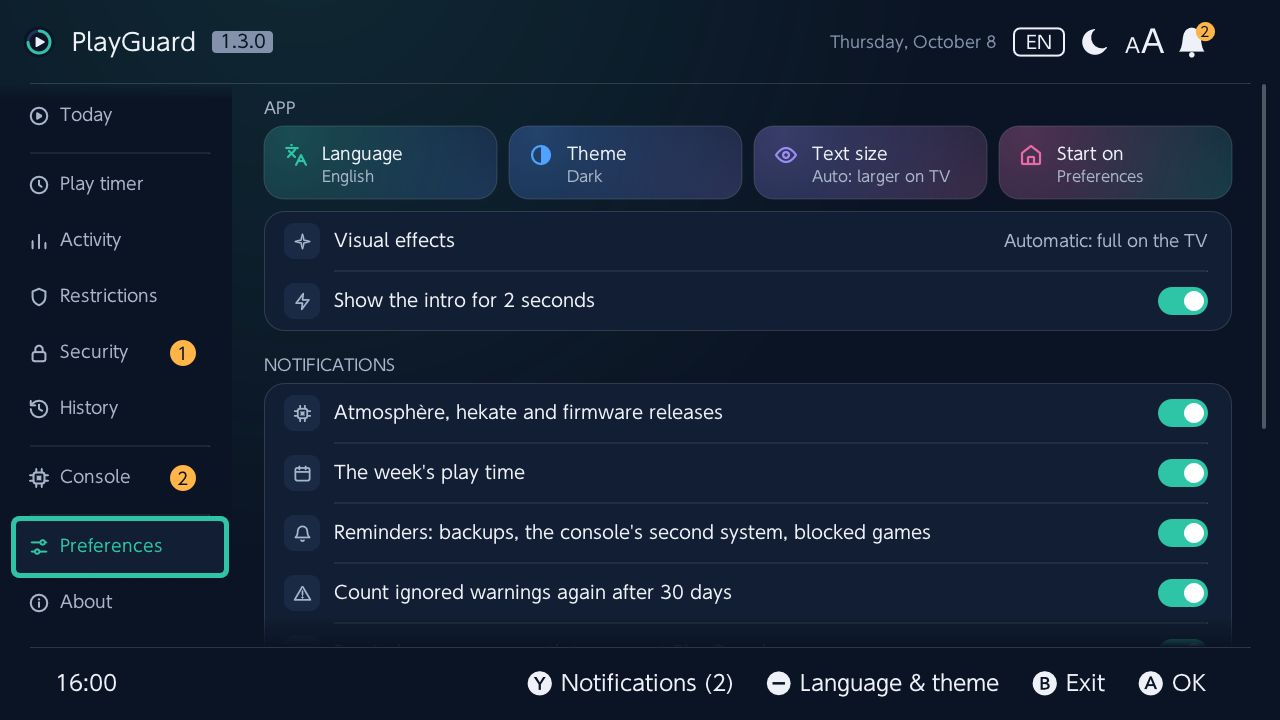
- As tiles first: language (every console language, or the console's own), theme (dark by default, light, or the console's), text size (automatic / normal / larger) and the tab to start on.
- The intro at start-up: the loading screen (its icon with the ring turning, the bar, Cadran's dial on the right) for 2 seconds (on by default; Ⓐ or Ⓑ skips it; off, PlayGuard opens as soon as it is ready).
- The messages it shows:
- The kinds of notifications (see above).
- A monthly reminder to support PlayGuard (on by default, never in the first month nor right after an update; Don't show again on the reminder or this switch turns it off for good, updates included).
- How it updates: Check for updates every day at start-up, and Update with (see About).
- First steps again (also in About › Help & diagnostics).
- A setting that shapes one feature sits with it: extra time in Play timer, turning parental controls back on in Security, the clock check in Console › Network clock. The change history and the backups have their tab, History; checking for updates now and Help & diagnostics are in About.
About
Version and updates
- At the top, its card: the mark, the name, the version.
- The installed PlayGuard: version (in amber when a newer one is out; Ⓐ opens its release notes).
- Check for updates now; Check for updates every day at start-up is in Preferences.
- Update with (in Preferences): in PlayGuard, which downloads the release, checks it, replaces itself and restarts, or sphaira, Homebrew App Store or by hand (asked on the first update when none is chosen). Handing over to a store asks for the PIN as a change does (Protect PlayGuard with the PIN › Before a change), and always while the homebrew menu is locked: a store starts any homebrew. Installed from the Homebrew App Store or sphaira's App Store, the store is the way recommended there, so it keeps track of the version; when its catalogue does not have the new release yet (it publishes one after a review, often a few days later), PlayGuard says so and offers to update in place instead.
- While a newer release is known, PlayGuard opens on PlayGuard X.Y.Z is available (its date and notes): Update, or Later for 1 day, 1 week or 30 days at most.
- The release notes are PlayGuard's own, on the same screen as Atmosphère's and hekate's in Console: from its GitHub releases, a tab per version (the installed one, the newer ones, the older ones), each with its highlights as cards and every change, kept on the SD card for offline reading (the installed version's are in the app too, for when nothing was fetched yet).
- After an update, PlayGuard opens once on What's new in X.Y.Z (the same highlights, then the QR codes).
Help & diagnostics
Help & diagnostics ›, a screen of its own, below Check for updates:
- At the top, under Getting started, two tiles: First steps and Send a report…; then Diagnostics.
- First steps opens the guide again (with an Unlink the companion app step while linked, a Turn the "Time's up" alarm back on step while it is off, a Protect PlayGuard step once a PIN is set — the Protect PlayGuard with the PIN choice —, and a switch to stop it coming up at start-up). Below Close, Support PlayGuard shows the funding QR codes.
- How PlayGuard was launched (an application over a game or from its HOME icon, or an applet) and its data folder.
- Export a diagnostic report, or send one online (Send a report…; see Reporting a bug); how many saved reports, crash files, session logs and links of reports sent online are kept, by number, age or size.
Credits
Credits and license ›: who made it, what it builds on, its license and its source as a QR code, in one dialog. Then how to support PlayGuard (GitHub Sponsors, Ko-fi, shown as QR codes to scan with a phone), and a small Made in France 🇫🇷.
Safety by design
Writing the play-time limit safely. Overwriting the timer's configuration while it counts down destabilises Atmosphère. So PlayGuard checks the state first; if the timer is active, the confirmation says parental controls will be unlocked temporarily — with the stored PIN, you don't need to remember it. One press then unlocks, checks that the system really reports the unlock, writes, and locks again right away (or offers to, if Turn parental controls back on after a change is off). The service layer re-checks the state just before writing, so no screen can skip the safeguard.
A limit below the time already played today suspends the game as soon as parental controls are locked again. The confirmation says so when that would happen.
No more 22.5 crashes. pctl:a, the privileged parental-control service, accepts a single session. Older builds of the original app kept it open, so the HOME-menu PIN prompt (or the PIN applet) could not get it and Atmosphère could crash. PlayGuard opens the session for each action and releases it immediately; periodic refreshes pause while the app is in the background. (Diagnosis by anbingxi's fork.)
Nothing runs in the background. The limit, the PIN, the warnings and the suspension are the console's own; PlayGuard only changes their settings.
What counts as play time
The play timer is the console's: PlayGuard reads it, it does not count anything itself. What is known, and how sure it is (parental-controls.md has the measurements):
| Situation | Counts? | How sure |
|---|---|---|
| A game running | Yes | Measured (22.0.0) |
| A game left open on the HOME menu (suspended in the background) | Yes: close it, or put the console in sleep mode | Reported by parents (Arqade); fits the measurements (the console counts while an application is open) |
| Sleep mode | No | Reported (Arqade); not measured by PlayGuard |
| PlayGuard opened over a game (as an application) | Yes, as that game | Measured (22.0.0): open it with a parent's user, or from the album for a quick look |
| PlayGuard started from a forwarder (its HOME menu icon, an application too) | Yes, under the icon's name | Inferred: an application like any other; not measured by PlayGuard |
| PlayGuard opened from the album (applet mode) | No | Inferred: it is not an application, and time outside applications did not seem to count |
| While parental controls are temporarily unlocked (PlayGuard's pause while you are in it, too) | Maybe not | Not measured: still open |
| After the clock was changed | The day starts over; after a jump back the count stops until the clock passes the old time | Observed (22.0.0); Today says when the console is not counting |